

Overview
MCP servers use a standard protocol — any MCP-compatible client can connect to your generated server. This includes AI assistants, IDEs with AI features, agent frameworks, and custom applications.Connection methods
Generated servers support three transports:
Most MCP clients default to stdio — the client starts your server process and communicates via stdin/stdout.
stdio connection (most common)
The client launches your server as a subprocess. No network setup needed.Configuration file
Most MCP clients use a JSON configuration file (commonly.mcp.json, mcp.json, or a client-specific configuration file). The structure is standardized:
.mcp.json file — copy its contents into your client’s MCP configuration.
Using a virtual environment
If you installed dependencies in a virtual environment, point to the Python binary inside it:Where clients look for configuration
Different clients read MCP configuration from different locations. Check your client’s documentation for the exact path. Common patterns:- Project-level:
.mcp.jsonormcp.jsonin the project root - Global/user-level: A configuration file in the client’s settings directory (e.g.,
~/.config/<client>/) - Client settings UI: Some clients let you add MCP servers through a settings panel
Network connection (SSE / HTTP)
For remote or containerized servers, start with a network transport:Multiple servers
You can connect multiple MCP servers to a single client. Each server runs independently and securely handles its own API: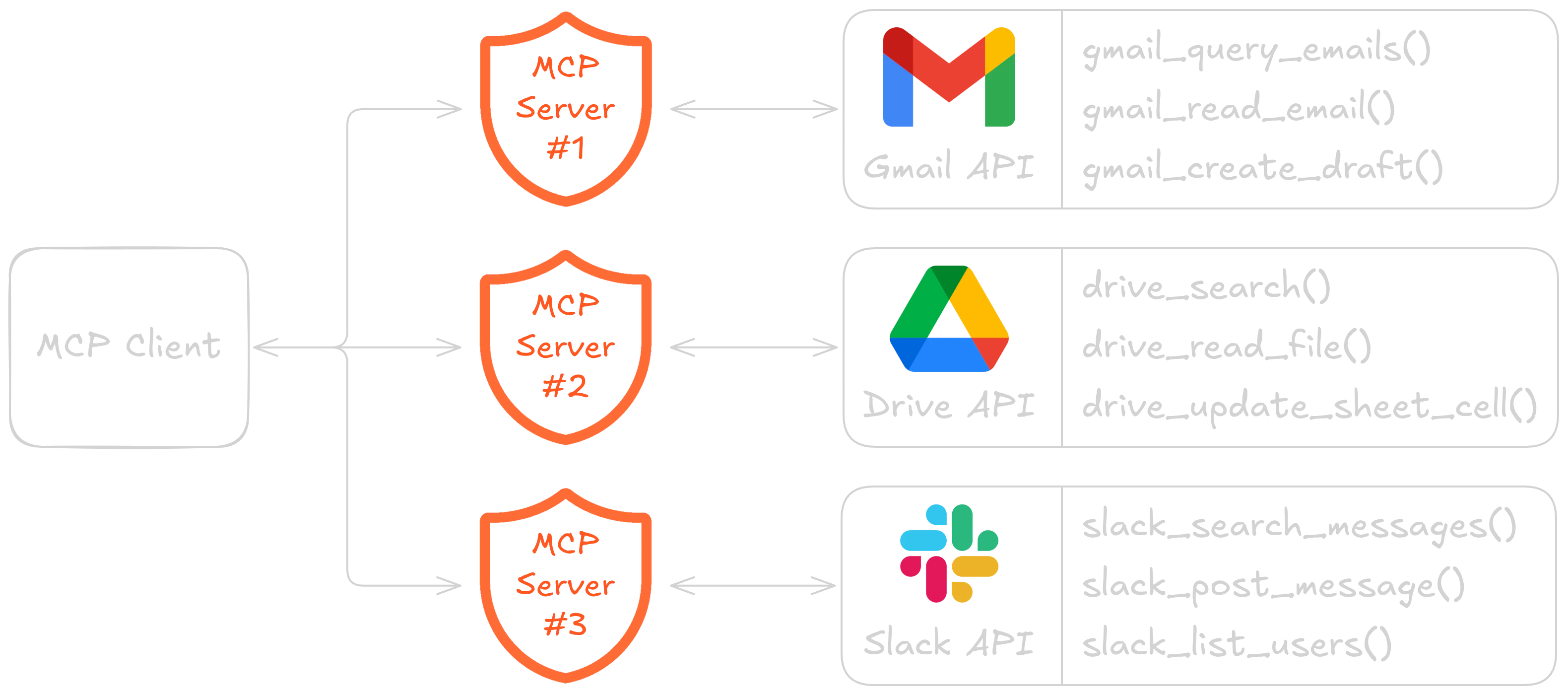
Verifying the connection
After configuring your client:- Restart the client (most clients read configuration on startup)
- Check that your API’s tools are listed in the client’s tool/MCP panel
- Ask the agent to perform an operation: “List all users using the my-api server”
python server.py directly in a terminal to verify the server starts without errors.
Troubleshooting
Server doesn’t appear in the client
- Verify the path to
server.pyis absolute and correct - Ensure
pythonresolves to Python 3.11+ (trypython3if needed) - Check that
requirements.txtdependencies are installed - Restart the client completely after changing configuration
Tools appear but return errors
- Check your
.envfile has correct credentials - Run
python server.pyin a terminal to see detailed error output - Verify the target API is reachable from your machine
OAuth2 authorization prompt
For APIs using OAuth2, the first connection may open a browser for authorization. Runpython server.py once in a terminal to complete the OAuth flow. After that, tokens are cached and the server works non-interactively.