> ## Documentation Index
> Fetch the complete documentation index at: https://docs.mcpblacksmith.com/llms.txt
> Use this file to discover all available pages before exploring further.
# Generation
> Configure and run MCP server generation — tools, passes, authentication overrides, and real-time progress tracking.
## Overview
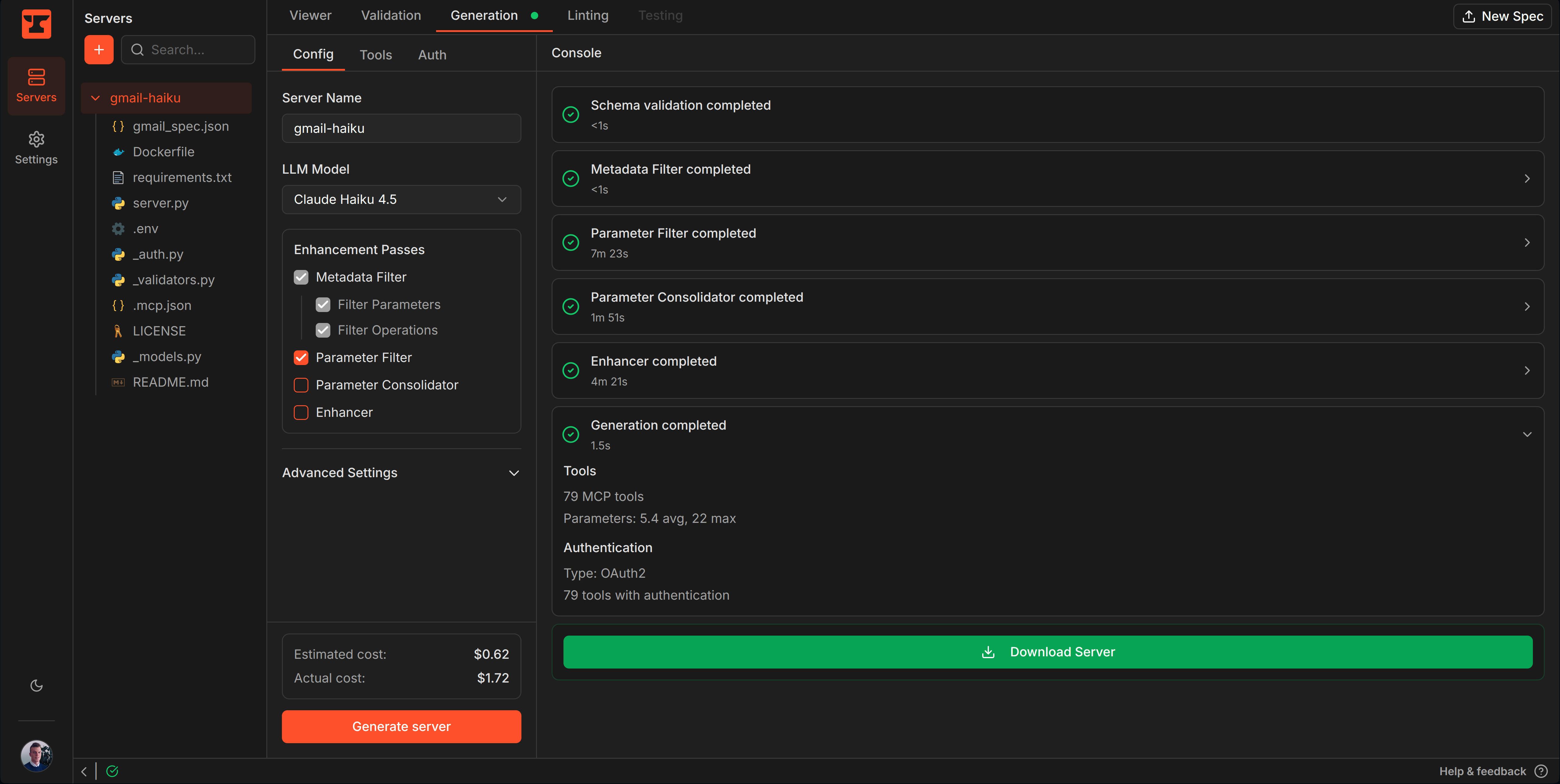
The Generation tab is where you configure and run the server generation pipeline. Select which tools to include, enable enhancement passes, configure authentication overrides, and track progress in real time.
 ## Configuration
### Server settings
* **Server Name** — display name for your MCP server
* **LLM Model** — the AI model used for enhancement passes (does not affect base generation)
### Enhancement passes
Select which [enhancement passes](/generation/enhancement-passes) to run during generation:
* **Metadata Filter** — removes read-only fields, deprecated parameters, and deprecated operations using OpenAPI metadata. Has sub-options for filtering parameters, operations, or both.
* **Parameter Filter** — identifies and removes low-value parameters (server-generated fields, computed values, redundant representations) to reduce tool noise
* **Parameter Consolidator** — replaces complex parameter representations (eg. base64-encoded structured content, DSL queries) with simple fields backed by auto-generated helper functions
* **Tool Enhancer** — rewrites operation names and descriptions, enriches parameter descriptions for better AI agent discoverability and usability, and resolves duplicate operation names
### Tool selection
The **Tools** sub-tab lets you select which API operations to include in the generated server. By default, all operations are included. Deselect operations you don't need to reduce the server's tool count and focus on the endpoints that matter for your use case.
### Authentication overrides
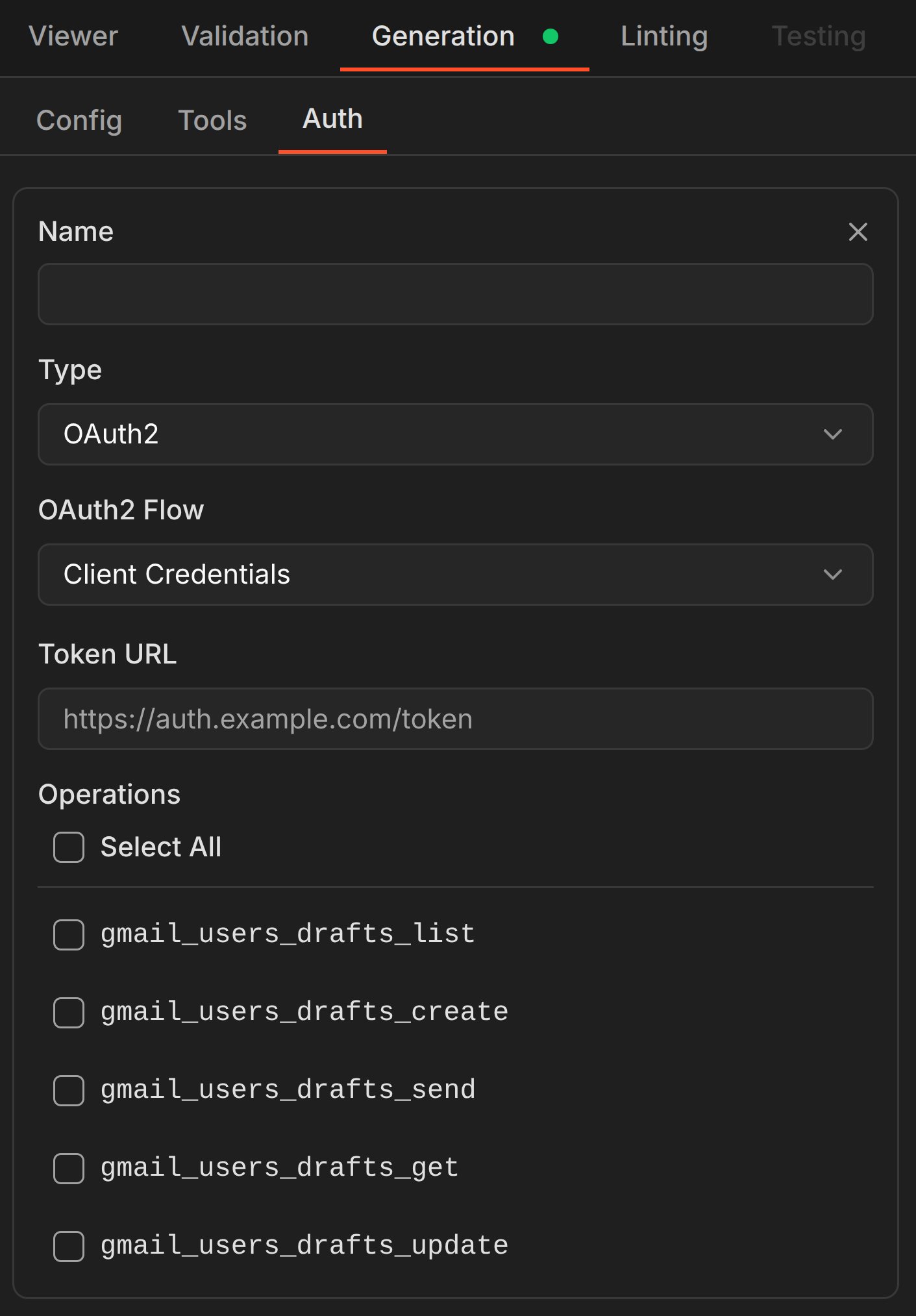
The **Auth** sub-tab lets you inject custom authentication schemes that your specification doesn't define or only partially covers through [`securitySchemes`](/reference/oas-3-0#security-scheme-object).
## Configuration
### Server settings
* **Server Name** — display name for your MCP server
* **LLM Model** — the AI model used for enhancement passes (does not affect base generation)
### Enhancement passes
Select which [enhancement passes](/generation/enhancement-passes) to run during generation:
* **Metadata Filter** — removes read-only fields, deprecated parameters, and deprecated operations using OpenAPI metadata. Has sub-options for filtering parameters, operations, or both.
* **Parameter Filter** — identifies and removes low-value parameters (server-generated fields, computed values, redundant representations) to reduce tool noise
* **Parameter Consolidator** — replaces complex parameter representations (eg. base64-encoded structured content, DSL queries) with simple fields backed by auto-generated helper functions
* **Tool Enhancer** — rewrites operation names and descriptions, enriches parameter descriptions for better AI agent discoverability and usability, and resolves duplicate operation names
### Tool selection
The **Tools** sub-tab lets you select which API operations to include in the generated server. By default, all operations are included. Deselect operations you don't need to reduce the server's tool count and focus on the endpoints that matter for your use case.
### Authentication overrides
The **Auth** sub-tab lets you inject custom authentication schemes that your specification doesn't define or only partially covers through [`securitySchemes`](/reference/oas-3-0#security-scheme-object).
 Use authentication overrides when:
* The specification **lacks `securitySchemes` entirely** — the API requires authentication but the specification doesn't declare it
* The specification has **partial coverage** — some operations require authentication that isn't defined in the specification
* You want to **inject a different authentication type** than what the specification declares (eg. using OAuth2 instead of API key). You don't need to remove the original scheme — simply leave its `.env` credentials empty at runtime and only configure the ones you want to use, whether they come from the specification's native `securitySchemes` or from your overrides.
Each override defines the authentication type, its configuration (token URL, flows, header names), and which operations it applies to.
Changes to `.env` require a server restart to take effect.
## Generation controls
### Real-time progress
The console panel shows real-time progress as each stage completes — from validation through enhancement passes to final code generation. Each stage reports its duration and summary statistics.
### Cost tracking
The dashboard displays both **estimated cost** and **actual cost** in real time:
* **Estimated cost** is calculated before generation starts, based on the number of operations and parameters
* **Actual cost** updates as each pass completes and tends to be lower than the estimate — parameters filtered by earlier passes reduce the workload for subsequent passes, which the estimate cannot account for in advance
### Pause and resume
If generation is **paused**, the task automatically stops with a 24-hour TTL. You can resume where it left off within that window.
Generation also **auto-pauses** if you run out of credits midway through a paid pass. Top up your credits and resume — no progress is lost.
### Stop
If generation is **stopped**, all progress is lost. The server will not be generated from partial results — stopping is a full cancellation.
## Output
Once generation completes, the **Download Server** button appears. The generated server is packaged as a ZIP archive containing all files described in [Server Structure](/server/structure).
The console summary shows:
* Total tool count
* Parameter statistics (average and maximum per tool)
* Authentication type and coverage
* Duration per stage
Use authentication overrides when:
* The specification **lacks `securitySchemes` entirely** — the API requires authentication but the specification doesn't declare it
* The specification has **partial coverage** — some operations require authentication that isn't defined in the specification
* You want to **inject a different authentication type** than what the specification declares (eg. using OAuth2 instead of API key). You don't need to remove the original scheme — simply leave its `.env` credentials empty at runtime and only configure the ones you want to use, whether they come from the specification's native `securitySchemes` or from your overrides.
Each override defines the authentication type, its configuration (token URL, flows, header names), and which operations it applies to.
Changes to `.env` require a server restart to take effect.
## Generation controls
### Real-time progress
The console panel shows real-time progress as each stage completes — from validation through enhancement passes to final code generation. Each stage reports its duration and summary statistics.
### Cost tracking
The dashboard displays both **estimated cost** and **actual cost** in real time:
* **Estimated cost** is calculated before generation starts, based on the number of operations and parameters
* **Actual cost** updates as each pass completes and tends to be lower than the estimate — parameters filtered by earlier passes reduce the workload for subsequent passes, which the estimate cannot account for in advance
### Pause and resume
If generation is **paused**, the task automatically stops with a 24-hour TTL. You can resume where it left off within that window.
Generation also **auto-pauses** if you run out of credits midway through a paid pass. Top up your credits and resume — no progress is lost.
### Stop
If generation is **stopped**, all progress is lost. The server will not be generated from partial results — stopping is a full cancellation.
## Output
Once generation completes, the **Download Server** button appears. The generated server is packaged as a ZIP archive containing all files described in [Server Structure](/server/structure).
The console summary shows:
* Total tool count
* Parameter statistics (average and maximum per tool)
* Authentication type and coverage
* Duration per stage