> ## Documentation Index
> Fetch the complete documentation index at: https://docs.mcpblacksmith.com/llms.txt
> Use this file to discover all available pages before exploring further.
# Connecting to AI Agents
> How to connect your generated MCP server to any MCP-compatible AI client, IDE, or agent framework.
## Overview
MCP servers use a standard protocol — any MCP-compatible client can connect to your generated server. This includes AI assistants, IDEs with AI features, agent frameworks, and custom applications.
## Connection methods
Generated servers support three transports:
| Transport | Use case | Connection |
| ------------------- | ---------------------------------------------------- | -------------- |
| **stdio** | Local clients that launch the server as a subprocess | Command + args |
| **SSE** | Network-based clients connecting over HTTP | URL endpoint |
| **Streamable HTTP** | Newer HTTP-based MCP transport | URL endpoint |
Most MCP clients default to **stdio** — the client starts your server process and communicates via stdin/stdout.
## stdio connection (most common)
The client launches your server as a subprocess. No network setup needed.
### Configuration file
Most MCP clients use a JSON configuration file (commonly `.mcp.json`, `mcp.json`, or a client-specific configuration file). The structure is standardized:
```json theme={null}
{
"mcpServers": {
"my-api": {
"command": "python",
"args": ["/absolute/path/to/server.py"]
}
}
}
```
Your generated server includes a pre-configured `.mcp.json` file — copy its contents into your client's MCP configuration.
Always use **absolute paths** to `server.py`. Most MCP clients do not resolve relative paths.
### Using a virtual environment
If you installed dependencies in a virtual environment, point to the Python binary inside it:
```json theme={null}
{
"mcpServers": {
"my-api": {
"command": "/absolute/path/to/my-api-server/.venv/bin/python",
"args": ["/absolute/path/to/my-api-server/server.py"]
}
}
}
```
### Where clients look for configuration
Different clients read MCP configuration from different locations. Check your client's documentation for the exact path. Common patterns:
* **Project-level**: `.mcp.json` or `mcp.json` in the project root
* **Global/user-level**: A configuration file in the client's settings directory (e.g., `~/.config//`)
* **Client settings UI**: Some clients let you add MCP servers through a settings panel
## Network connection (SSE / HTTP)
For remote or containerized servers, start with a network transport:
```bash theme={null}
# SSE transport
python server.py --transport sse --port 8000
# Streamable HTTP transport
python server.py --transport streamable-http --port 8000
```
Then configure your client with the URL:
```json theme={null}
{
"mcpServers": {
"my-api": {
"url": "http://localhost:8000/sse"
}
}
}
```
This is the standard approach for Docker deployments, remote servers, and shared environments.
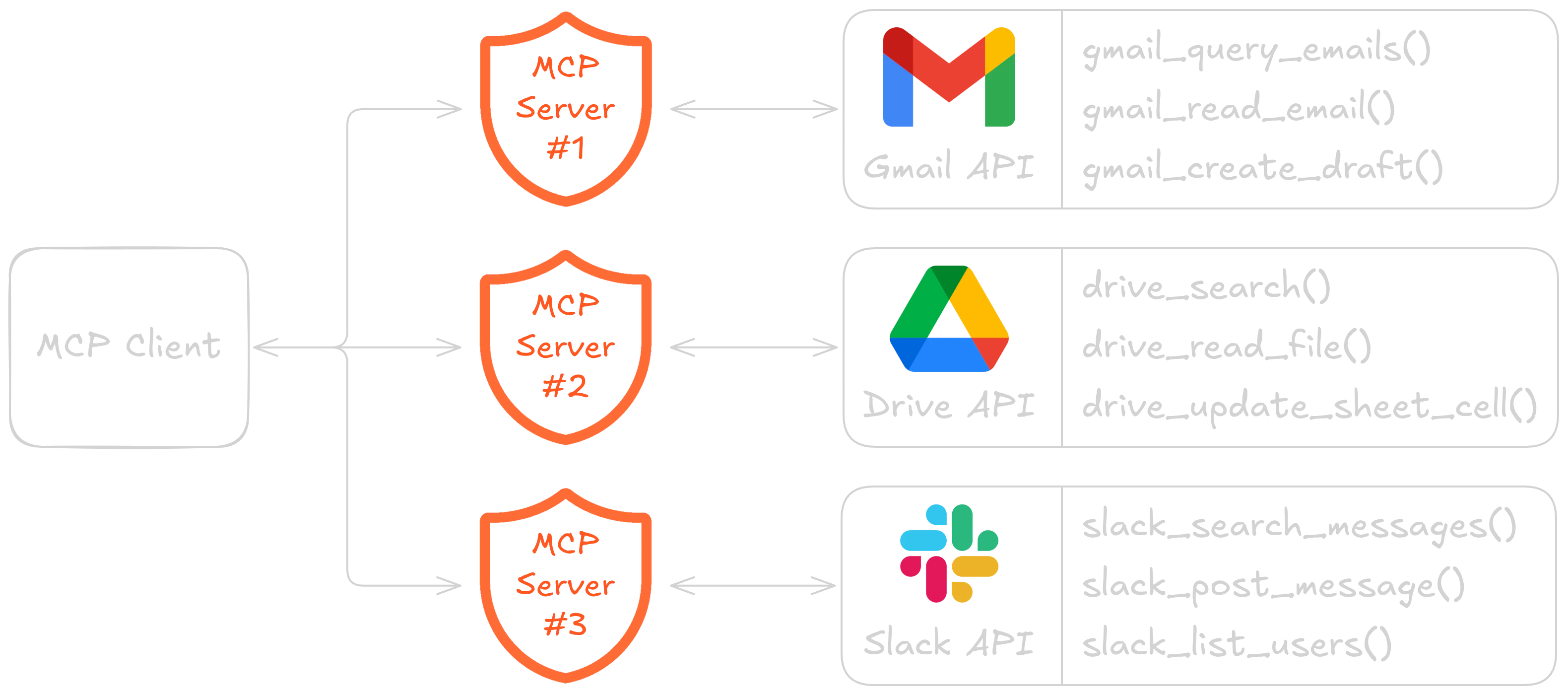
## Multiple servers
You can connect multiple MCP servers to a single client. Each server runs independently and securely handles its own API:
 ```json theme={null}
{
"mcpServers": {
"gmail": {
"command": "python",
"args": ["/path/to/gmail-server/server.py"]
},
"github": {
"command": "python",
"args": ["/path/to/github-server/server.py"]
},
"stripe": {
"command": "python",
"args": ["/path/to/stripe-server/server.py"]
}
}
}
```
The AI agent sees all tools from all servers and selects the right one based on context.
## Verifying the connection
After configuring your client:
1. Restart the client (most clients read configuration on startup)
2. Check that your API's tools are listed in the client's tool/MCP panel
3. Ask the agent to perform an operation: *"List all users using the my-api server"*
If tools don't appear, run `python server.py` directly in a terminal to verify the server starts without errors.
## Troubleshooting
### Server doesn't appear in the client
* Verify the path to `server.py` is absolute and correct
* Ensure `python` resolves to Python 3.11+ (try `python3` if needed)
* Check that `requirements.txt` dependencies are installed
* Restart the client completely after changing configuration
### Tools appear but return errors
* Check your `.env` file has correct credentials
* Run `python server.py` in a terminal to see detailed error output
* Verify the target API is reachable from your machine
### OAuth2 authorization prompt
For APIs using OAuth2, the first connection may open a browser for authorization. Run `python server.py` once in a terminal to complete the OAuth flow. After that, tokens are cached and the server works non-interactively.
```json theme={null}
{
"mcpServers": {
"gmail": {
"command": "python",
"args": ["/path/to/gmail-server/server.py"]
},
"github": {
"command": "python",
"args": ["/path/to/github-server/server.py"]
},
"stripe": {
"command": "python",
"args": ["/path/to/stripe-server/server.py"]
}
}
}
```
The AI agent sees all tools from all servers and selects the right one based on context.
## Verifying the connection
After configuring your client:
1. Restart the client (most clients read configuration on startup)
2. Check that your API's tools are listed in the client's tool/MCP panel
3. Ask the agent to perform an operation: *"List all users using the my-api server"*
If tools don't appear, run `python server.py` directly in a terminal to verify the server starts without errors.
## Troubleshooting
### Server doesn't appear in the client
* Verify the path to `server.py` is absolute and correct
* Ensure `python` resolves to Python 3.11+ (try `python3` if needed)
* Check that `requirements.txt` dependencies are installed
* Restart the client completely after changing configuration
### Tools appear but return errors
* Check your `.env` file has correct credentials
* Run `python server.py` in a terminal to see detailed error output
* Verify the target API is reachable from your machine
### OAuth2 authorization prompt
For APIs using OAuth2, the first connection may open a browser for authorization. Run `python server.py` once in a terminal to complete the OAuth flow. After that, tokens are cached and the server works non-interactively.